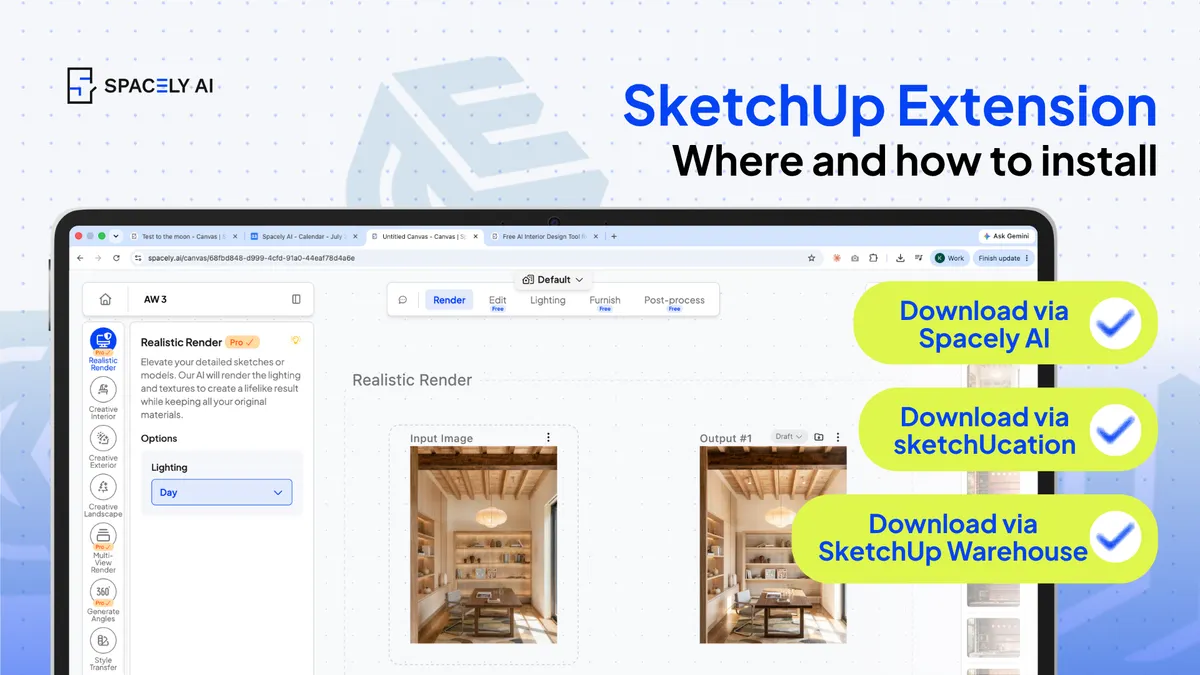
How to install a SketchUp extension two ways — from the Extension Warehouse or from SketchUcation. Step-by-step, plus troubleshooting.
You can install a SketchUp extension in two main ways: through the built-in Extension Warehouse on the SketchUp's official marketplace, or via SketchUcation, a popular community platform, by downloading extensions from its website or using its in-app ExtensionStore. The Extension Warehouse installs extensions in a few clicks from right inside SketchUp; SketchUcation lets you install the many extensions hosted there by downloading them straight from the SketchUcation website, or browse and install them through its store plugin.
Both add new tools to SketchUp, rendering, modelling helpers, and more, and knowing both covers almost every extension you'll want to install. Below: how to install via each method, step by step, how to install a downloaded extension, and how to troubleshoot if one doesn't appear.
As one example, the Spacely AI extension which lets you render your SketchUp model with AI in about 60 seconds.
How do you install a SketchUp extension from the Extension Warehouse?
The easiest way, a few clicks inside SketchUp.
- Sign in. Log in with your Trimble/SketchUp account when prompted.
- Find the extension. Search for the one you want (for example, "Spacely AI").
- Install it. Open the extension's page and click Install.
- Grant permission. Confirm when SketchUp asks. The extension installs and appears in your Extensions menu or as a toolbar.
How do you install a SketchUp extension from SketchUcation?
Download it from the SketchUcation website, then install it in SketchUp.
SketchUcation hosts a huge library of community extensions on its website (in the SketchUcation Plugin Store). You download the extension you want from the site, then add it to SketchUp. There are two ways to do this.
Option A: the SketchUcation ExtensionStore plugin (browse and install in-app):
- Go to sketchucation.com, create a free account, and download the SketchUcation ExtensionStore from the website.
- Add it to SketchUp via Window → Extension Manager → Install Extension (see below).
- The ExtensionStore now appears inside SketchUp — from there you can browse the SketchUcation library and download and install extensions directly, without visiting the site each time.
Option B: download an extension straight from the website:
- On sketchucation.com, sign in with your free account and find the extension in the Plugin Store.
- Download it from the website.
- Add it to SketchUp via the Extension Manager (see below).
How do you install a downloaded SketchUp extension?
Use the Extension Manager's Install Extension button. Once you've downloaded an extension from SketchUcation (or another source), install it like this:
- Open the Extension Manager. In SketchUp, go to Window → Extension Manager (SketchUp 2017 and later).
- Click Install Extension. Find the button at the bottom of the Extension Manager.
- Select the downloaded file. Browse to the extension you downloaded and open it.
- Grant permission. Confirm when asked, and the extension installs.
This is how you install any extension that isn't in the Extension Warehouse.
Why isn't my SketchUp extension showing up?
A few quick checks. If an extension doesn't appear after installing, run through these.
- Enable it: open the Extension Manager and make sure the extension is toggled on.
- Restart SketchUp: some extensions only appear after a restart.
- Check compatibility: confirm the extension supports your SketchUp version.
- Confirm permissions: make sure you granted the permission it asked for during install.
- Look in the right place: extensions can appear in the Extensions menu, as a toolbar, or in a tray, depending on the tool. One of these usually solves it.
FAQ
How do you install a SketchUp extension? The easiest way is through the Extension Warehouse: in SketchUp, open the Extensions menu → Extension Warehouse, sign in, search for the extension, and click Install. Alternatively, download an extension (for example from the SketchUcation website) and install it via Window → Extension Manager → Install Extension.
What's the difference between the Extension Warehouse and SketchUcation? The Extension Warehouse is SketchUp's official, built-in marketplace, where extensions install in a few clicks. SketchUcation is a popular community platform whose extensions you download from its website — either directly, or through its ExtensionStore plugin that lets you browse and install them from inside SketchUp. Both are widely used.
Why isn't my SketchUp extension showing up after installing? Check that it's enabled in the Extension Manager, restart SketchUp (some extensions only appear after a restart), confirm the extension supports your SketchUp version, and make sure you granted the permission it requested. Also look in the Extensions menu, toolbars, and trays, since extensions appear in different places.
More design workflow insights on the Spacely AI blog →
Get started
→ Create your free account
→ Watch the full tutorial on YouTube
→ Explore the member plan
For more information and media inquiries, please contact
Website: spacely.ai
Facebook: facebook.com/spacelyai
Instagram: instagram.com/spacely.ai
Email: [email protected]