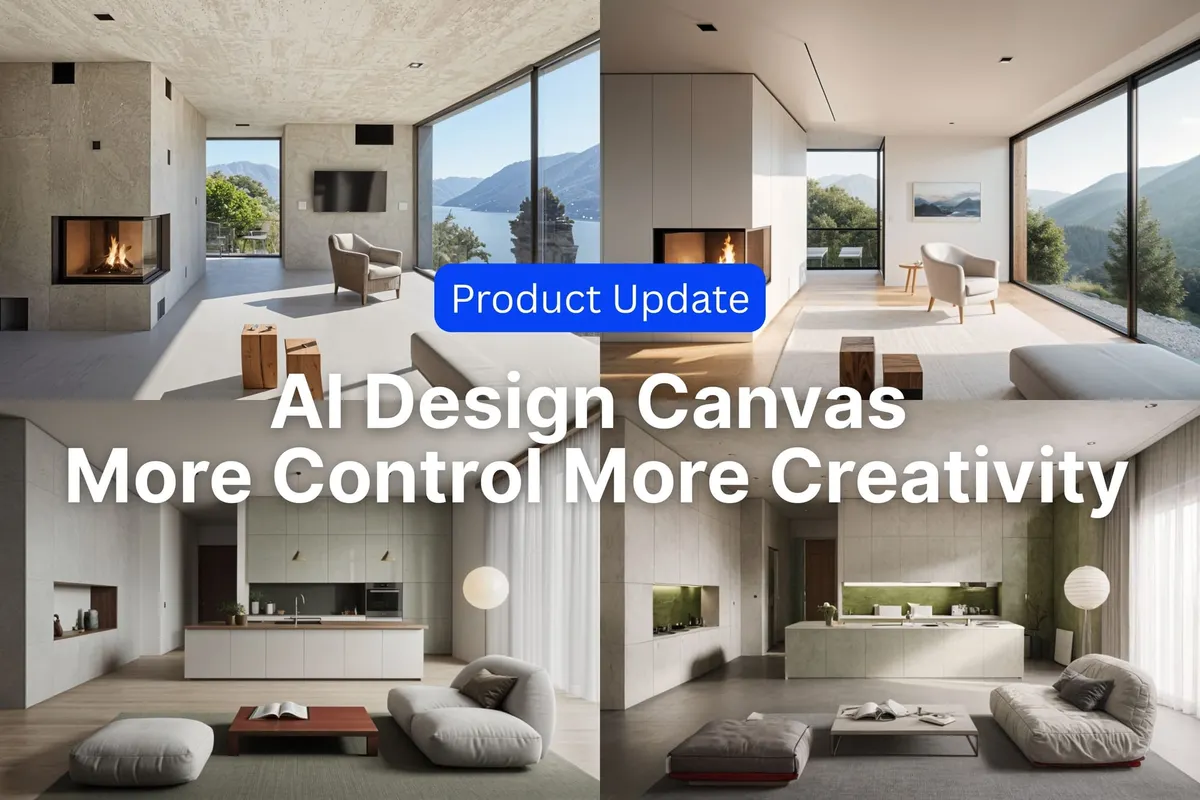
Spacely AI Canvas Update: More Control with New Render Modes & Smarter Styling
Paruey A··3 min read
We’ve rolled out a major update to AI Design Canvas — giving you more creative control and flexibility when rendering or styling your designs. Whether you’re exploring bold new directions or finalizing photorealistic visuals, this update is built to support your entire design workflow.
✨ Feature 1: Creative Render & Realistic Render
What is it? Spacely’s original Render feature has now been split into two distinct options within the Canvas: Creative Render and Realistic Render.
🆕 What’s new? Previously, there was only one render button. Now, you can choose between two dedicated modes depending on your design goal:
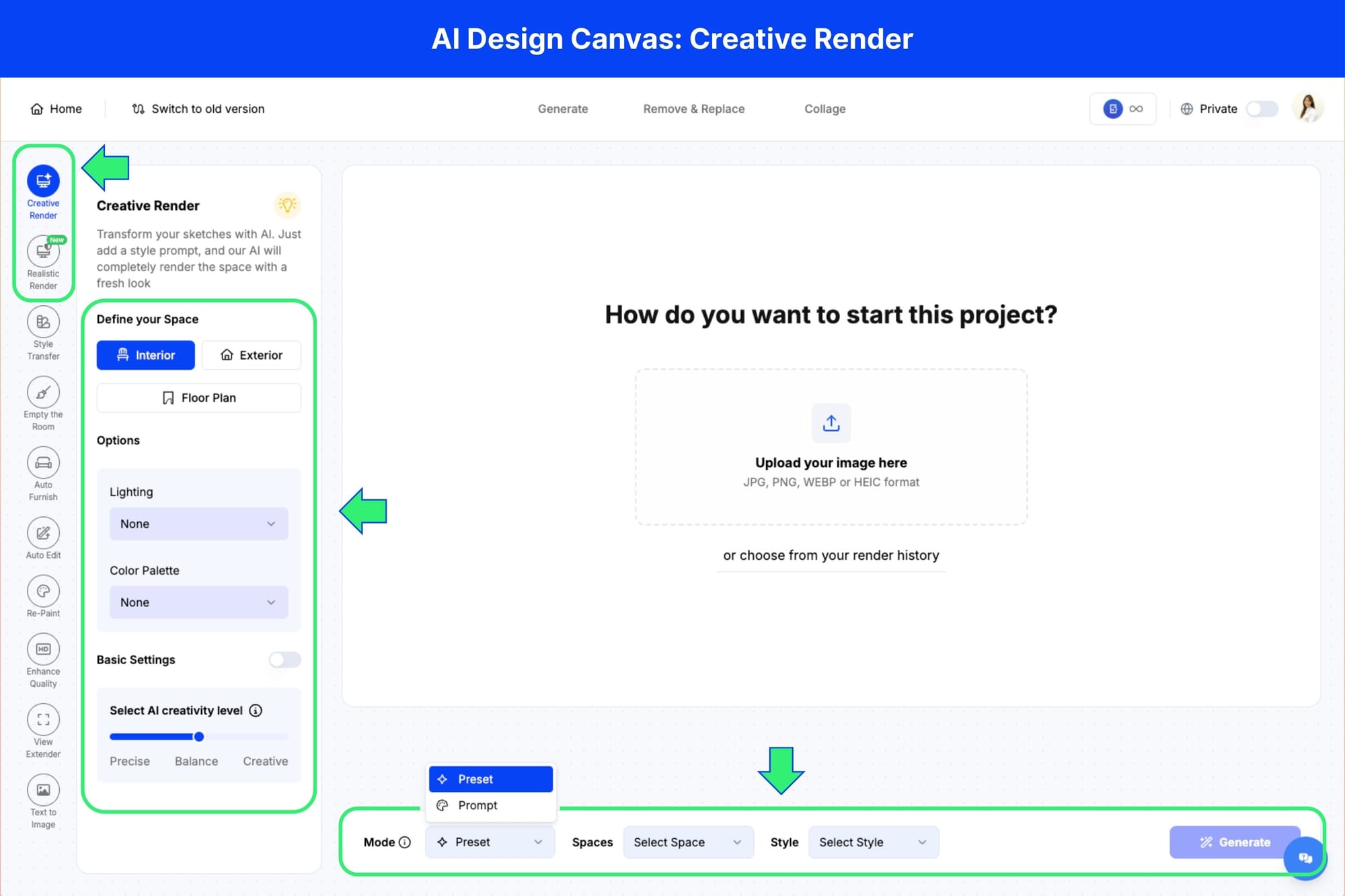
Creative Render helps you explore styles, layouts, and concepts freely
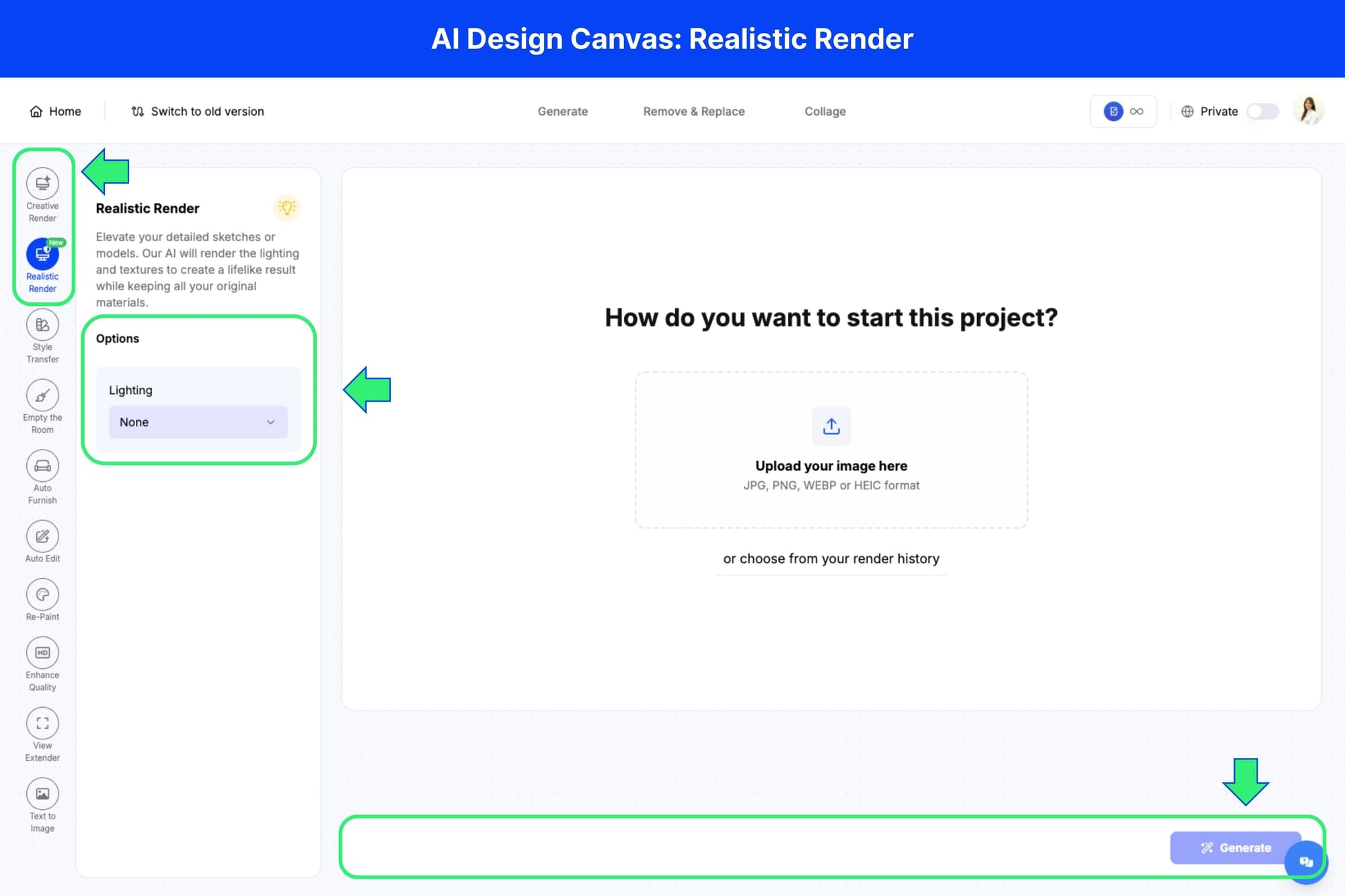
Realistic Render focuses on enhancing material texturesand lighting while keeping your layout intact
🔨 How to use it
1. Open your project in AI Design Canvas 2. Upload your image 3. Select either Creative Render or Realistic Render from the left panel 4. 1 For Creative Render: Select a style preset or type your own prompt, then adjust lighting, color palette 4.2 For Realistic Render: Simply adjust the lighting option—Spacely AI will enhance textures and realism while keeping your layout intact 5. Click Generate
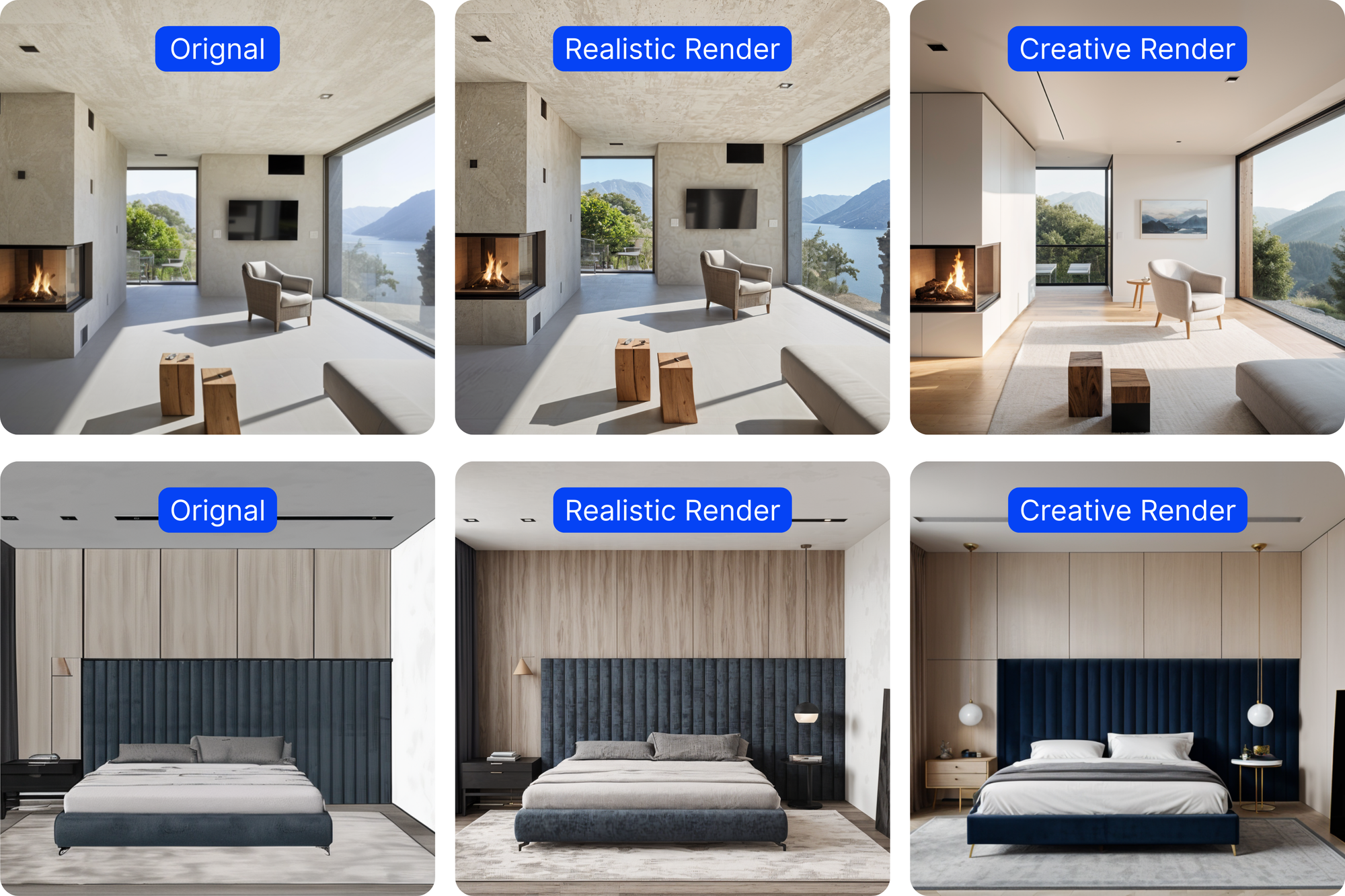
🚀 Result
Creative Render gives you freedom to iterate and reimagine your design.
Realistic Render makes your final visual sharper, more accurate, and more presentation-ready.
✨ Feature 2: Dual Render Modes in Style Transfer (Precise & Creative)
What is it?
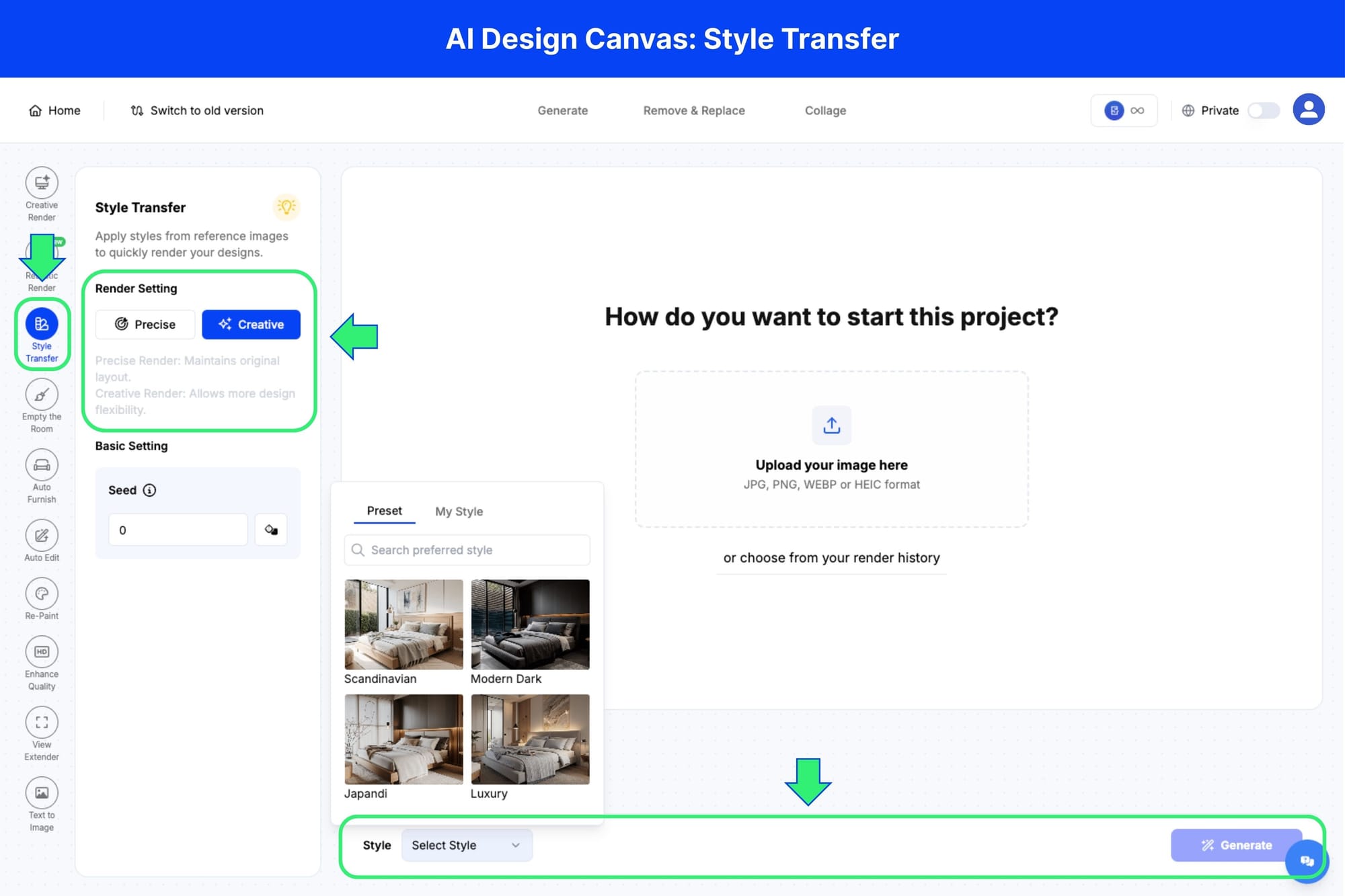
Style Transfer now offers two rendering settings, giving users more control over how design styles are applied to their space.
🆕 What’s new?
Previously, Style Transfer only had a slider for "precision." Now it includes two model-based render modes:
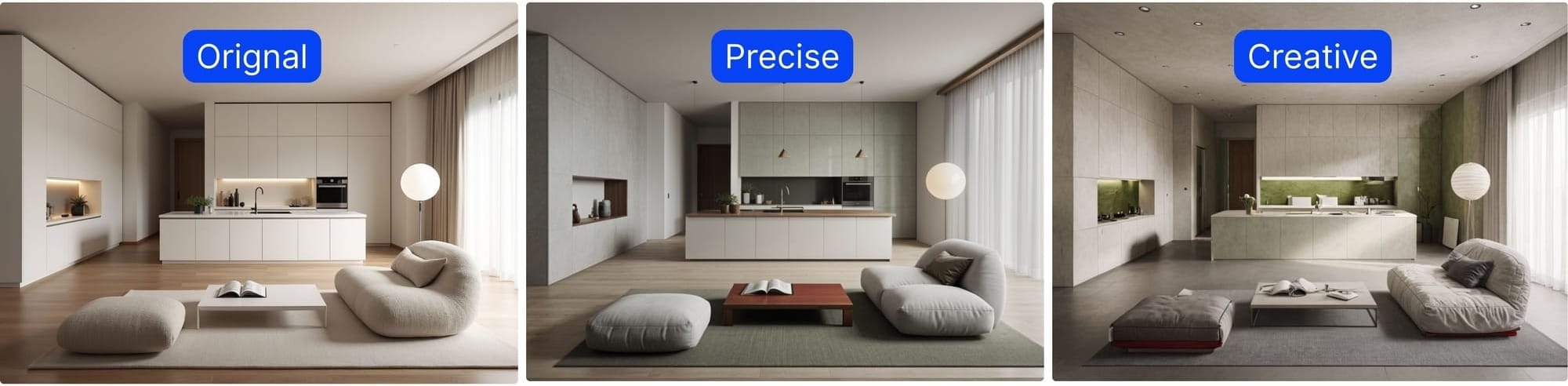
Precise Render: Maintains the original layout and structure while applying a new style
Creative Render: Allows more flexibility in changing layout, materials, and decor
🔨 How to use it
1. Open Style Transfer in in AI Design Canvas 2. Upload your image 3. Select a style preset or upload your own reference image 4. Choose between Precise Render or Creative Render 5. Click Generate to apply the transformation
🚀 Result
Use Precise Render when you want to keep the room structure intact with a fresh style overlay.
Use Creative Render when you're looking to fully reimagine the space. This gives you more control over visual direction depending on your workflow stage.
🔍 Recap of What’s New
✅ Creative Render and Realistic Render now available separately in Canvas ✅ Style Transfer supports both Precise Render and Creative Render modes ✅ Greater control over layout, realism, and visual styling ✅ Ideal for both design exploration and final presentation visuals
🚀 Try the New Features Now
The new rendering modes are now live inside Spacely AI Design Canvas — ready to support your workflow from start to finish.
Spacely AI is now on Revit. Turn your Revit 3D views into photorealistic, client-ready renders at concept speed without leaving Revit. Free on the Autodesk Mark…
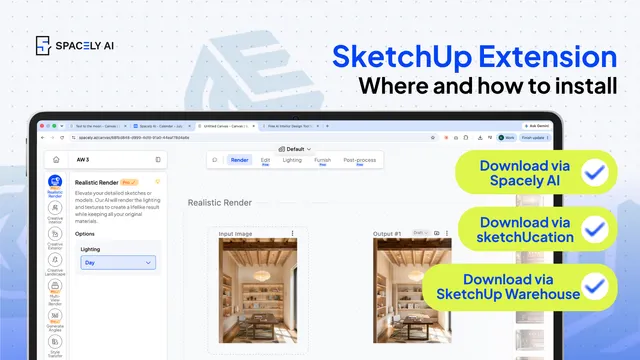
How to install a SketchUp extension two ways — from the Extension Warehouse or from SketchUcation. Step-by-step, plus troubleshooting.
You can install a Sketch…
The pace of design has changed. Team Canvas brings your whole team onto one live render in Spacely AI: real-time edits, comments, and shared credits.
Real-time…